Port Forwarding
Forward ports from any Kubernetes resource with one click — no terminal commands, no manual cleanup.
Overview
Port forwarding lets you access a service running inside your cluster on your local machine. This is essential for debugging, testing APIs, connecting to databases, and accessing admin dashboards that aren't publicly exposed.
With kubectl port-forward, you have to remember the exact command syntax, keep a terminal open, and restart the forward every time it drops. Krust replaces all of that with a visual interface that manages connections automatically.
Official Kubernetes reference: kubectl port-forward.
Best fit: use Free for normal one-service forwarding. Use Pro when you need multiple DNS mappings, saved port-forward profiles, and auto-restore across sessions.
Quick Start
- Navigate to any resource that exposes ports — Pods, Deployments, StatefulSets, DaemonSets, or Services.
- Right-click the resource and select Port Forward, or use the toolbar button.
- Krust reads the container spec and presents the available ports. Select the port you want to forward and choose a local port (or accept the suggested one).
- Click Start. The connection opens immediately and, if configured, your browser launches to the forwarded address.
Active port forwards appear in the menu bar and in the port-forward management panel, where you can stop or restart them from one place.
Features
Smart Port Detection
Krust reads container port definitions directly from the resource spec. When you initiate a port forward, the available ports are pre-populated — no need to look up port numbers manually. Named ports are displayed alongside their numbers for clarity.
Auto-Open Browser
For HTTP services, Krust can automatically open your default browser pointed at the forwarded address as soon as the connection is ready. This is especially useful for web UIs, dashboards, and API documentation endpoints.
Auto-Reconnect
Network interruptions, pod restarts, and cluster hiccups happen. When a port forward drops, Krust detects the disconnection and re-establishes the tunnel automatically. No manual intervention required — the connection simply recovers.
When forwarding from a Service or workload (Deployment, StatefulSet, DaemonSet), Krust automatically re-resolves to a new backing pod if the original pod is evicted or restarted. It uses the service selector or workload labels to find a healthy replacement, retrying with backoff for up to 30 seconds. Direct pod forwards reconnect to the same pod on transient network failures.
Persist & Restore Pro
Port-forward profiles and auto-restore are part of Krust Pro. Save your forwarding setup once, then relaunch and reconnect without rebuilding the same tunnel list each time.
Multiple Concurrent Forwards
Run as many port forwards as you need simultaneously. Forward your database on one port, your API on another, and a monitoring dashboard on a third — all managed from a single interface.
Port-Forward Profiles Pro
Save frequently used port forwards as reusable profiles for quick access. Profiles store resource identity and port mapping, so recurring dev tunnels can be restarted in one click.
Connection Status Tracking
Every active forward shows a real-time status indicator:
- Ready — the tunnel is active and traffic is flowing
- Connecting — the connection is being established or re-established
- Error — the forward failed, with details on what went wrong
Menu Bar Controls
Active port forwards are accessible from the macOS menu bar. You can see all running forwards at a glance and stop or restart any of them without switching away from your current view.
Individual Stop & Start
Each port forward can be stopped and started independently. Pause a forward you don't need right now without tearing down everything else. Resume it later with the same configuration.
Why VPN Is Needed
Cluster internal addresses like *.svc.cluster.local are not normal public domains, so your Mac cannot open them directly by default.
Krust uses Apple Network Extension plumbing so those internal cluster addresses can work naturally in your browser and local tools. This is local Kubernetes networking support, not a traditional internet VPN.
- Without VPN: You can still use
localhostlinks. - With Krust networking enabled: You can open friendly cluster-style hostnames directly.
- You stay in control: The DNS proxy / local networking features can be enabled or disabled in Settings.
DNS Proxy Workflow
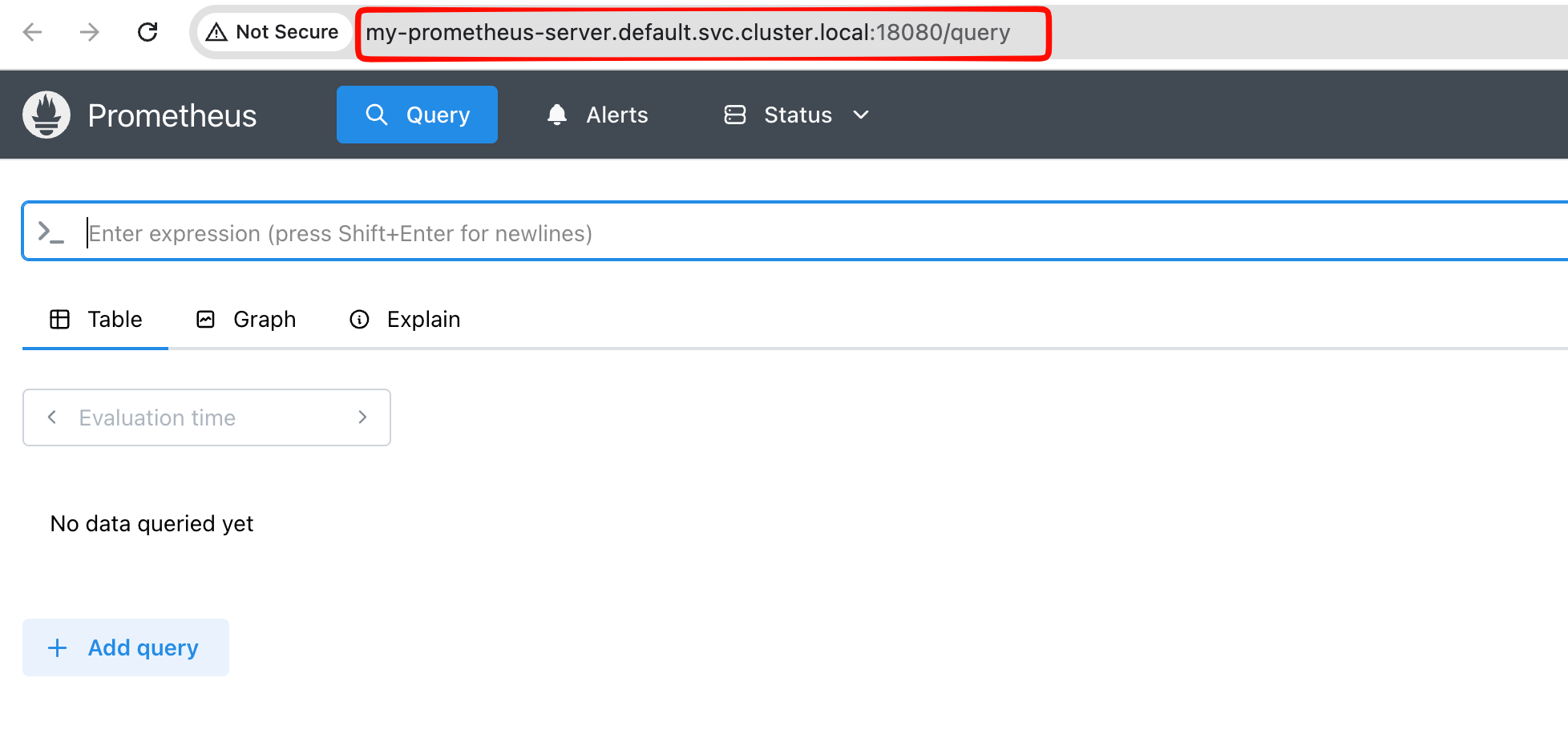
When DNS Proxy is enabled, Krust lets you use *.svc.cluster.local hostnames locally, so links are easier to read and share.
Under the hood, Krust uses a system DNS proxy managed by Network Extension rather than an older manual resolver-style setup. Active mappings are kept in sync directly from the app.
Plan limits: Free includes 1 active DNS mapping at a time. Pro unlocks multiple concurrent DNS mappings.
In Settings, you can verify whether DNS Proxy is enabled, whether the system networking path is healthy, and whether Krust is actively serving cluster-local mappings.
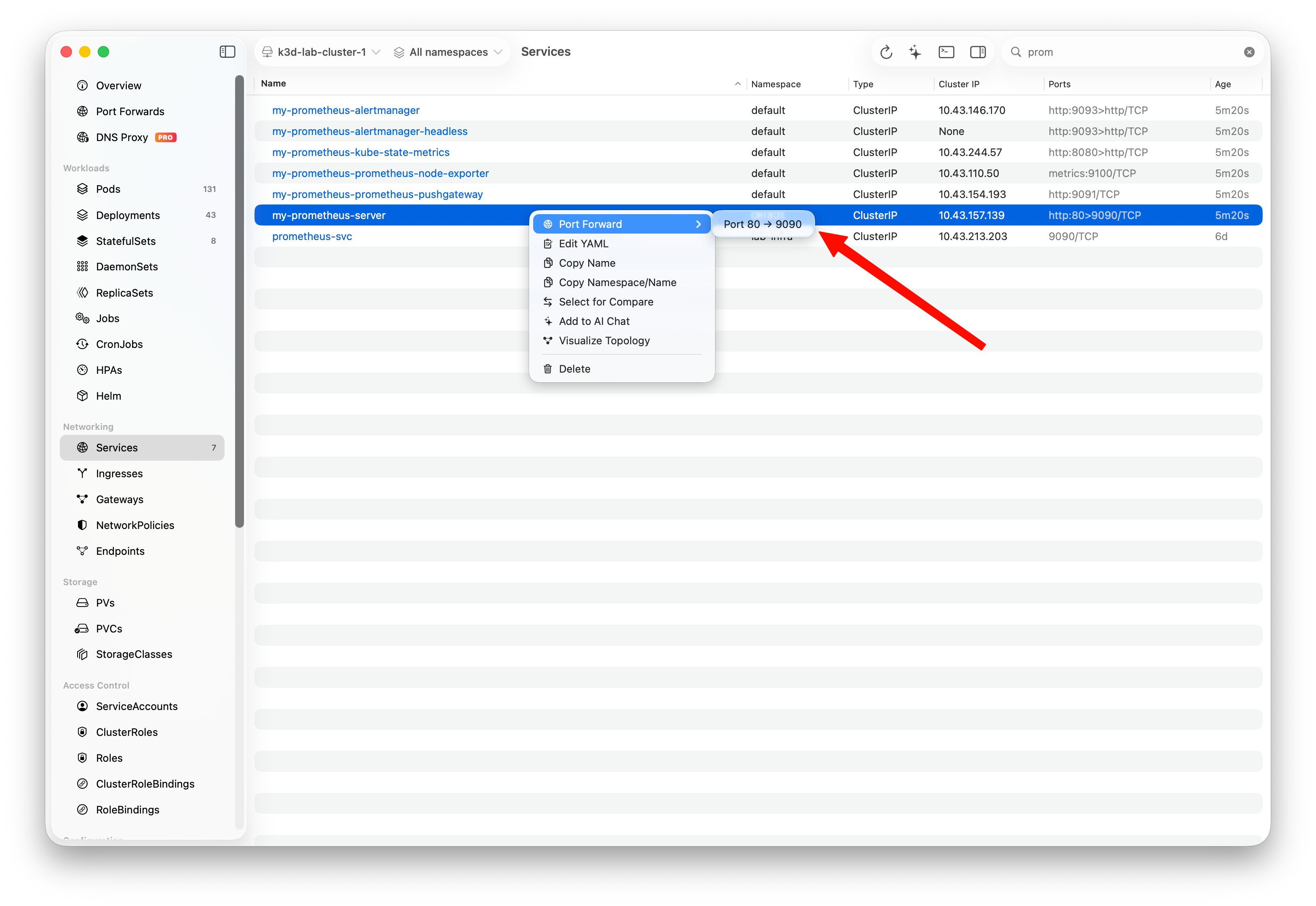
For common web ports like 80 or 443, Krust may use a safe local fallback port automatically when needed.
Mappings are tracked by service hostname and service port, so one forwarded hostname can safely serve multiple ports without one route overwriting another.
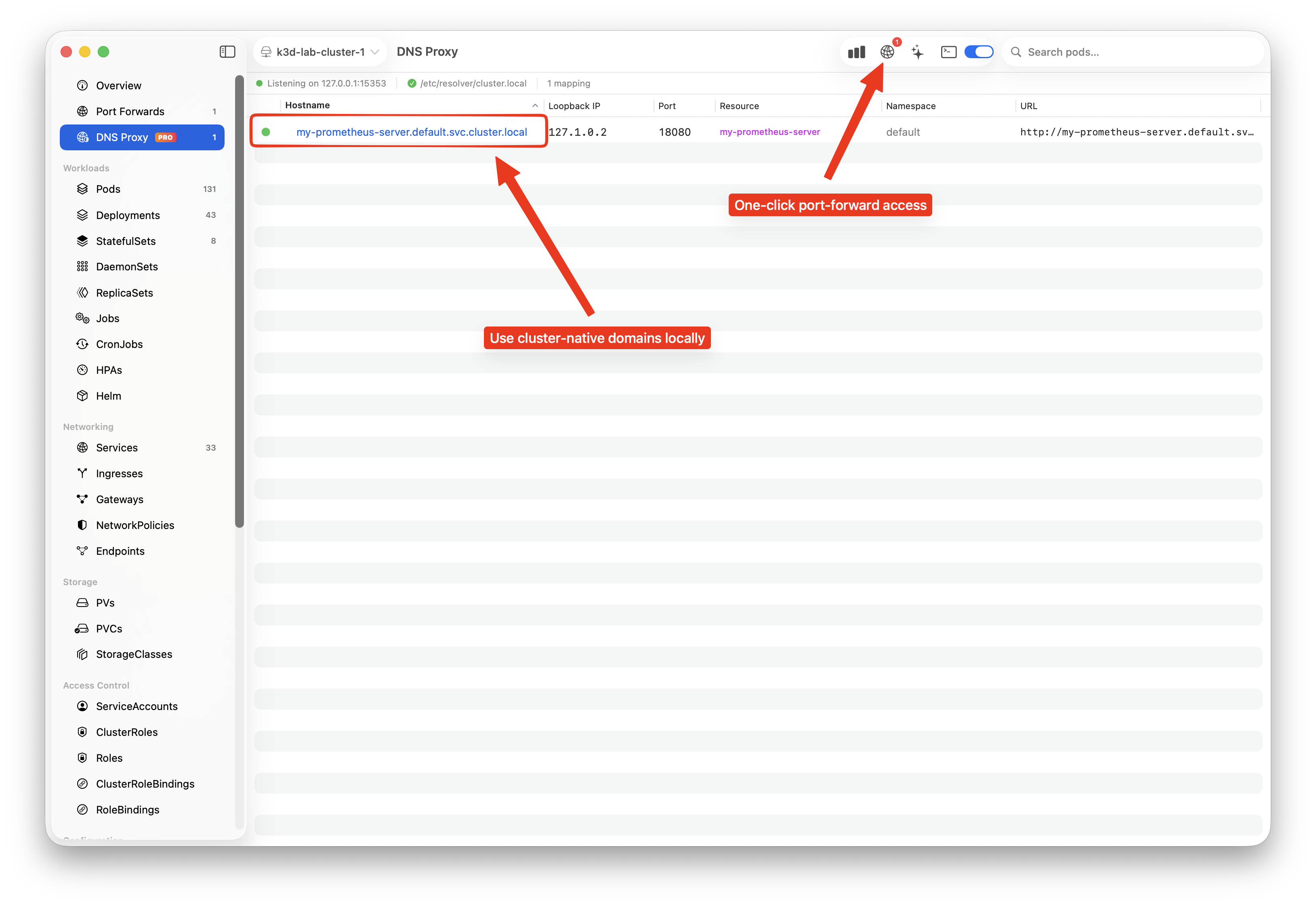
You can verify active hostname-to-loopback mappings in the DNS Proxy tab, including the resolved hostname, VIP, service port, and local URL currently in use.
Krust vs. kubectl port-forward
| Capability | Krust | kubectl port-forward |
|---|---|---|
| Start a forward | Right-click, select port, done | Type full command with namespace, resource, and ports |
| Port discovery | Ports auto-detected from spec | Look up ports manually |
| Reconnect on drop | Automatic | Command exits, restart manually |
| Survive app restart | Pro profiles restore automatically | Gone when terminal closes |
| Saved profiles | Pro: save and recall with one click | Shell aliases or scripts |
| Multiple forwards | Managed in a single panel | One terminal window per forward |
| Status visibility | Live status indicators and menu bar | Terminal output only |
| Browser integration | Auto-open on connect | Open browser manually |
Tips
- Database access — Forward your PostgreSQL or MySQL port and connect with your favorite database client. Bookmark it so you can reconnect instantly after a cluster switch.
- Microservice debugging — Forward multiple services at once to reproduce a full request flow locally. The status indicators help you confirm all tunnels are up before testing.
- Dashboard access — For web UIs like Grafana, Kibana, or custom admin panels, enable auto-open browser so the dashboard appears as soon as the forward is ready.
- Shared configurations — Use bookmarks to standardize port mappings across your team. Everyone uses the same local ports, avoiding confusion in documentation and scripts.
- Service-level forwarding — Forward from a Service rather than a specific Pod when you want the tunnel to survive pod restarts and rescheduling. Krust handles the underlying pod resolution automatically.