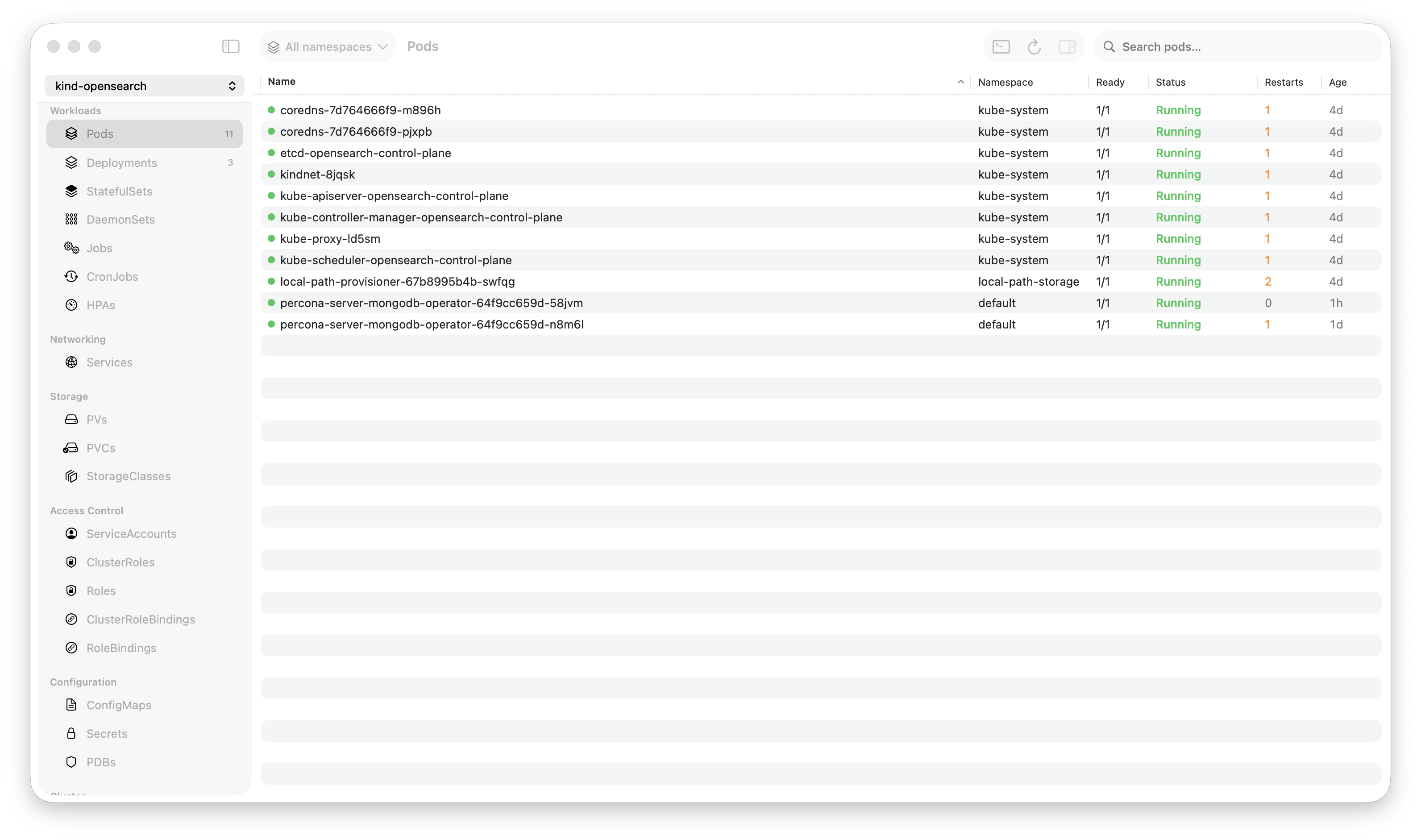
Krust is a native Kubernetes desktop app for production operations on macOS. If you are evaluating tools, compare Features and start with Quick Start.
I’ve been managing Helm releases from the terminal for years. helm list, helm history, helm get values, helm rollback. It works. But every time I need to compare values between two revisions, I end up doing this:
helm get values my-app --revision 2 -n production > /tmp/v2.yaml
helm get values my-app --revision 3 -n production > /tmp/v3.yaml
diff /tmp/v2.yaml /tmp/v3.yaml
Three commands to answer one question: “what changed?”
Krust puts all of that in a single interface. List releases, browse history, inspect values at any revision, diff between revisions, rollback, and upgrade — with a live preview of what the upgrade will actually change before you apply it.
Here’s what the workflow looks like.
Release Overview: Watch, Don’t Poll
When you open the Helm tab in Krust, you see all your releases immediately. No helm list needed. Krust watches Helm release secrets (the owner=helm labeled secrets where Helm stores its state) through a Kubernetes watch stream. Same mechanism it uses for pods and deployments.
What this means in practice:
- Someone on your team upgrades a release → you see it update in real time
- A release fails → status turns red immediately, no refresh needed
- New chart deployed → appears in the list within seconds
The table shows status, name, namespace, chart, app version, revision number, and last updated timestamp. Status is color-coded: green for deployed, red for failed, orange for pending operations.
Across multiple clusters? Krust watches all connected contexts simultaneously. One table, one view, every Helm release across your infrastructure.
Values Inspection: Three Layers, One Panel
Helm values are layered, and mixing them up is a common source of “why is this configured that way?” confusion:
User Values — only the overrides you passed with -f values.yaml or --set. This is what makes your deployment different from the chart defaults. In the CLI: helm get values my-app.
Default Values — the chart’s built-in values.yaml. What you get with zero customization. In the CLI: helm show values <chart> (requires the chart repo, not always available).
All Values — defaults merged with user overrides. This is what templates actually render against. In the CLI: helm get values my-app --all.
In Krust, these are three buttons in the inspector panel. Click between them. No commands, no temp files, no forgetting which terminal output was which.
And here’s the part that matters: you can view values for any revision, not just the current one. Click on revision 2 in the history timeline, hit “All Values” — there it is. Try doing that in the CLI without a script.
Revision History & Diff
Every Helm release accumulates revisions. helm history my-app gives you a text table. Fine for checking the current state. Useless for understanding what changed.
Krust shows the full history timeline in the inspector. Each revision displays status, chart version, app version, timestamp, and description. But the useful part is the Diff button.
Click Diff on any revision → side-by-side comparison of values between that revision and the previous one. Additions in green, removals in red, changes highlighted. One click answers “what did that last upgrade change?” without touching the terminal.
This is especially valuable during incident response. “The app broke after the last deploy” → open Helm tab → find the release → click Diff on the latest revision → immediately see that someone changed replicas from 3 to 1 or bumped the image tag to an untested version.
Rollback: Pure Rust, No CLI Needed
Rollback in Krust works without the helm binary. Here’s why and how.
Helm stores the complete rendered manifest inside each release secret. To rollback to revision N, Krust:
- Reads revision N’s manifest from the release secret
- Strips server-managed fields (
resourceVersion,uid,creationTimestamp,managedFields, etc.) that would cause API conflicts - Applies each resource using server-side apply with
application/apply-patch+yaml— raw YAML, not JSON, to preserve YAML 1.1 types like octal0755 - Marks the current release as
superseded - Creates a new release secret with incremented revision, status
deployed
This is exactly what helm rollback does internally, but implemented in Rust without spawning a subprocess. It works in environments where the helm binary isn’t installed — bastion hosts, jump servers, containers with minimal tooling. If you have Kubernetes API access, you can rollback.
Upgrade: GUI-Driven, helm Under the Hood
Upgrade is where the helm CLI earns its keep. Resolving chart dependencies — subcharts, repositories, OCI registries — is deeply embedded in Helm’s Go codebase. Reimplementing that in Rust would be impractical and fragile. So Krust uses the helm binary for upgrades.
But it wraps the experience in a workflow that makes upgrades safer:
1. Load Current Values
Click “Upgrade” on any release. Krust loads the current values into a full YAML editor with syntax highlighting. You see exactly what’s deployed right now.
2. Edit
Change what you need. Bump the image tag, adjust resource limits, toggle a feature flag, modify replica counts. The editor is a real YAML editor — not a form with text inputs, not a web-based textarea. Syntax highlighting, proper indentation handling.
3. Preview Before Apply
This is the key differentiator. Hit the preview button and Krust runs helm template with your new values, then shows a diff between the current manifest and the new manifest.
You see exactly what Kubernetes resources will change:
- Deployment spec getting new image? Highlighted.
- ConfigMap data changing? Highlighted.
- New resource being created? Highlighted.
- Resource being removed? Highlighted.
In the CLI, this requires manually running helm template, saving the output, getting the current manifest with helm get manifest, and diffing them. Most people skip this step entirely and just helm upgrade blindly. The GUI makes preview effortless, so people actually use it.
4. Confirm and Apply
Review the diff. If it looks right, confirm. Krust runs helm upgrade with --reuse-values and your modified values file. Success or failure shows immediately in the release list — status updates in real time via the watch stream.
Context Menu Shortcuts
Right-click any release for quick access:
- User Values / All Values / Defaults — open in a read-only window
- Manifest — view the rendered manifest
- Upgrade — jump straight to the upgrade editor
- Rollback to Rev N — with confirmation dialog
- Copy Name / Copy Namespace — for when you do need the CLI
Small things, but they eliminate the friction of typing helm get values my-release-with-a-long-name -n my-namespace --revision 4.
When This Matters Most
The Helm CLI is a great tool. I still use it for helm repo add, helm install, chart development, packaging. Krust doesn’t try to replace those workflows.
Where Krust shines is operational Helm management — the day-to-day of “what’s deployed, what changed, is it healthy, can I safely upgrade?”
Specific scenarios where the GUI saves real time:
- Incident triage — “what changed recently?” → Helm tab → sort by updated → diff latest revision. 10 seconds, not 60.
- Multi-cluster comparison — “is staging and production on the same chart version?” → one table, both clusters, visual scan.
- Safe upgrades — preview the manifest diff before applying. Catch mistakes before they reach the cluster.
- Onboarding — new team member needs to understand what’s deployed? The Helm tab is self-explanatory. No need to remember flag combinations.
Try It
brew install vanchonlee/tap/krustOpen Krust, connect to a cluster with Helm releases. They appear automatically — Krust reads the release secrets directly. For upgrades and previews, make sure helm is in your PATH.
Krust is a native Kubernetes desktop app for macOS built with Rust and Swift. Helm list, inspect, history, diff, and rollback work without the helm CLI. Upgrade and preview use the helm binary for chart dependency resolution.