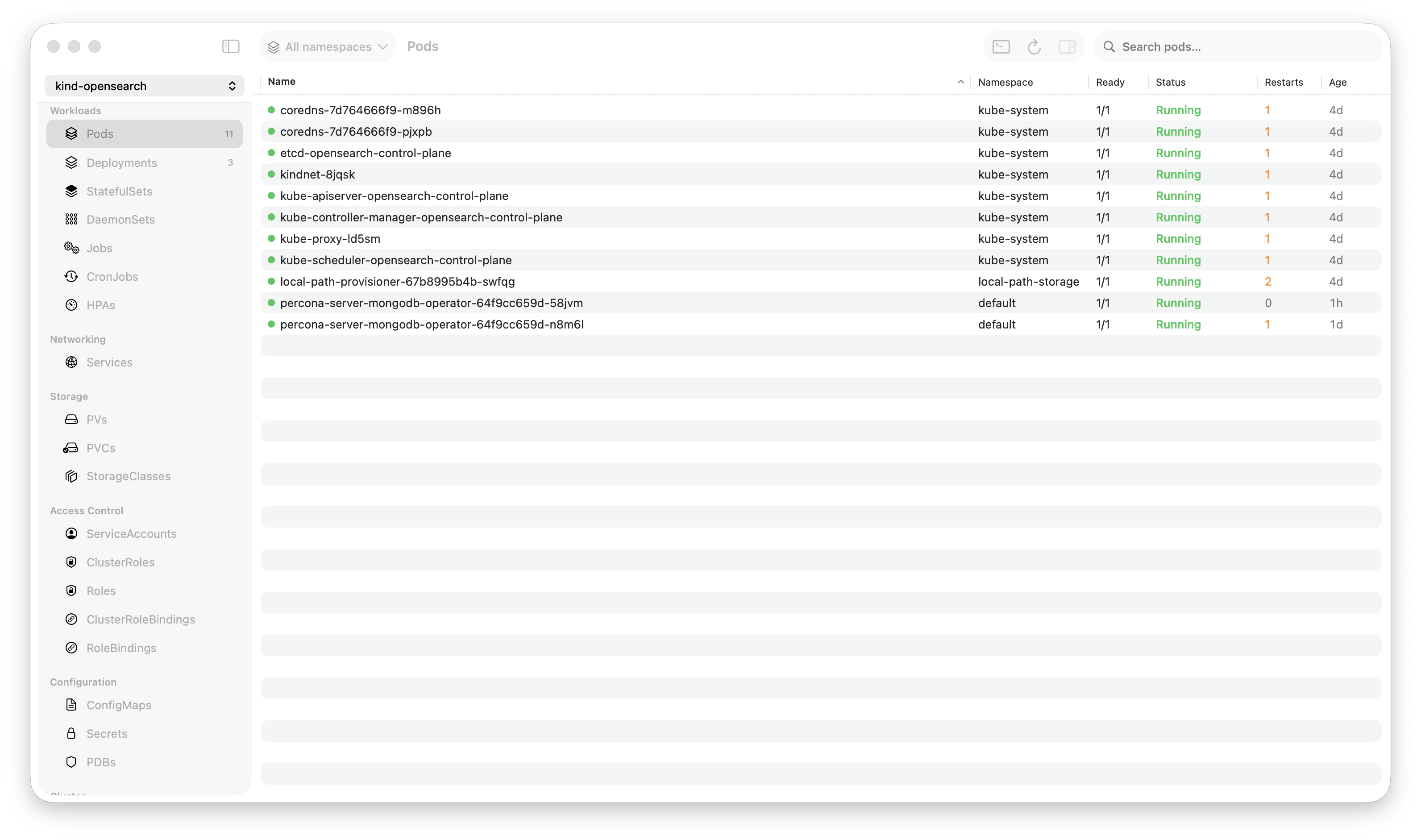
Krust is a native Kubernetes desktop app for production operations on macOS. If you are evaluating tools, compare Features and start with Quick Start.
Custom Resource Definitions are everywhere. Cert-manager has Certificates and Issuers. ArgoCD has Applications. Istio has VirtualServices. Prometheus has ServiceMonitors. Every operator you install adds its own resource types to your cluster.
And yet, browsing them is stuck in 2018:
kubectl get certificates -n production
kubectl describe certificate my-tls-cert -n production
kubectl get certificate my-tls-cert -n production -o yaml | less
Raw text. No structure. No conditions summary. No cross-referencing. You need to know the resource name, the API group, and the right kubectl command. For a cluster with 20+ CRDs, this becomes an exercise in memory.
Krust has a CRD browser that discovers every Custom Resource Definition in your cluster, lists all instances with dynamic columns, and shows status conditions in a structured inspector — without you configuring anything.
How It Works
Automatic Discovery
When you connect to a cluster, Krust watches the CRD API (customresourcedefinitions.apiextensions.k8s.io). Every CRD in the cluster appears in the CRD tab automatically:
| Name | Group | Kind | Scope | Versions | Age |
|---|---|---|---|---|---|
| certificates.cert-manager.io | cert-manager.io | Certificate | Namespaced | v1 | 180d |
| applications.argoproj.io | argoproj.io | Application | Namespaced | v1alpha1 | 90d |
| virtualservices.networking.istio.io | networking.istio.io | VirtualService | Namespaced | v1beta1, v1 | 45d |
| prometheusrules.monitoring.coreos.com | monitoring.coreos.com | PrometheusRule | Namespaced | v1 | 120d |
No configuration. No “add this CRD to your tool.” No plugin to install. If it exists in the cluster, it’s in the list.
New CRD installed? It appears in real-time via the watch stream. CRD deleted? It disappears.
Dynamic Table Columns
Click “Browse Instances” on any CRD, and Krust opens a table of all instances. But here’s the key feature: the table columns are dynamic, generated from the CRD’s additionalPrinterColumns spec.
CRD authors define printer columns — the same columns kubectl get uses. Krust reads these from the CRD definition and builds the table accordingly.
For certificates.cert-manager.io:
| Name | Namespace | Ready | Secret | Issuer | Status | Age |
|---|---|---|---|---|---|---|
| my-tls-cert | production | True | my-tls-secret | letsencrypt-prod | Certificate is up to date | 30d |
| api-cert | staging | False | api-secret | letsencrypt-staging | Issuing | 2h |
For applications.argoproj.io:
| Name | Namespace | Sync Status | Health | Project | Age |
|---|---|---|---|---|---|
| frontend | argocd | Synced | Healthy | default | 15d |
| backend | argocd | OutOfSync | Degraded | default | 15d |
Different CRDs, different columns. The browser adapts to whatever the CRD defines. Up to 6 printer columns are displayed, plus Name, Namespace (if namespaced), and Age.
JSONPath Evaluation
Each printer column in a CRD spec includes a JSONPath expression that points to a field in the custom resource. For example:
additionalPrinterColumns:
  - name: Ready
    type: string
    jsonPath: .status.conditions[?(@.type=="Ready")].status
  - name: Secret
    type: string
    jsonPath: .spec.secretName
Krust evaluates these JSONPath expressions against each custom resource instance to populate the table cells. The evaluation handles nested fields (.status.phase), metadata fields (.metadata.creationTimestamp), and returns the values as strings for display.
This means: any well-defined CRD works out of the box. If the CRD author specified printer columns (and most do), Krust displays them correctly.
The Inspector
Click on any custom resource instance to open the inspector panel. This is where a GUI adds real value over kubectl describe.
Status Conditions
Most custom resources use the Kubernetes conditions pattern:
status:
  conditions:
    - type: Ready
      status: "True"
      reason: CertificateIssued
      message: "Certificate is up to date and has not expired"
    - type: Issuing
      status: "False"
      reason: ""
      message: ""
The inspector renders these as a structured list with visual indicators:
- Ready: True (green checkmark) — CertificateIssued
- Issuing: False (orange X)
In kubectl describe, conditions are buried in a wall of text. In the inspector, they’re the first thing you see. At a glance, you know if the resource is healthy.
Printer Column Values
The inspector also shows all printer column values in a structured section — the same data as the table, but alongside the conditions, labels, annotations, and metadata. Everything about this resource in one panel.
Full Status JSON
Below the structured sections, the raw status JSON is displayed with syntax highlighting. Booleans, numbers, strings — each color-coded. Expandable sections for nested objects. This covers the long tail of status fields that aren’t in conditions or printer columns.
Labels & Annotations
Displayed cleanly, with kubectl.kubernetes.io/last-applied-configuration filtered out (it’s noise in a GUI — you already have the YAML viewer for that).
Why This Matters
Operator Debugging
When a cert-manager Certificate isn’t issuing, you need to check:
- The Certificate’s conditions (Ready? Issuing?)
- The Issuer or ClusterIssuer it references
- The CertificateRequest it created
- The Order and Challenge resources (for ACME/Let’s Encrypt)
In kubectl:
kubectl get certificate my-cert -n prod -o yaml
kubectl get certificaterequest -n prod | grep my-cert
kubectl get order -n prod | grep my-cert
kubectl get challenge -n prod | grep my-cert
Four commands, reading raw YAML output, mentally connecting the chain.
In Krust: browse Certificates → click my-cert → see conditions. Browse CertificateRequests → filter by name → see its conditions. The inspector shows structured status at every level.
Inventory & Audit
“What custom resources are in this cluster?”
kubectl api-resources --api-group="" --verbs=list | head -20
# Not enough, need non-core groups too
kubectl api-resources --verbs=list
# Now you have 80+ lines, most are built-in
# Filter to custom...
kubectl get crd
# OK now list instances of each...
kubectl get certificates.cert-manager.io --all-namespaces
kubectl get applications.argoproj.io --all-namespaces
# Repeat for each CRD
In Krust: open the CRD tab. Every custom resource type, listed. Click any one to browse its instances. Two clicks per CRD, no commands.
Multi-Cluster CRD Comparison
Connect to staging and production. Open the CRD tab. See which CRDs exist in each cluster. Notice that staging has canaries.flagger.app but production doesn’t — someone installed Flagger in staging and forgot to deploy it to production.
Browse instances across clusters: same CRD, different clusters, one table. Compare instance counts, status conditions, versions.
Scope-Aware
CRDs can be cluster-scoped or namespace-scoped. Krust handles both:
- Namespaced CRDs (most common): instances are fetched per-namespace, the table includes a Namespace column, namespace filtering works
- Cluster-scoped CRDs (e.g., ClusterIssuers, ClusterRoles): instances are fetched cluster-wide, no Namespace column, no namespace filter needed
The scope is detected from the CRD definition. No configuration needed.
Edit & Delete
Right-click any custom resource instance:
- Edit YAML (Cmd+E) — opens the full YAML in an editor, save to apply changes
- Delete — with confirmation dialog
- Batch delete — select multiple instances, delete in one action
For CRDs themselves (not instances), delete shows a warning: “This will also delete all custom resources of this type.” Because deleting a CRD cascades to all its instances — a fact that’s not always obvious.
What’s Not Covered
Krust’s CRD browser is a viewer and editor, not a specialized operator UI. It doesn’t:
- Render operator-specific visualizations (ArgoCD sync graph, Istio mesh topology)
- Provide CRD-specific actions (“renew certificate”, “sync application”)
- Show relationships between resources automatically (Certificate → CertificateRequest → Order)
These would require per-operator plugins, which is a different scope. Krust gives you a universal browser that works with any CRD, showing the same structured data that kubectl get and kubectl describe would show — but in a visual, searchable, multi-cluster interface.
Try It
brew install vanchonlee/tap/krustOpen the CRD tab. See every custom resource type in your cluster. Browse instances with dynamic columns. Check conditions without reading YAML. It works with every CRD — cert-manager, ArgoCD, Istio, Prometheus, Crossplane, your own custom operators.
Krust is a native Kubernetes desktop app for macOS. The CRD browser discovers all custom resource types automatically and displays instances with dynamic printer columns, structured conditions, and multi-cluster support. Free tier available, with Pro focused on incident workflows.