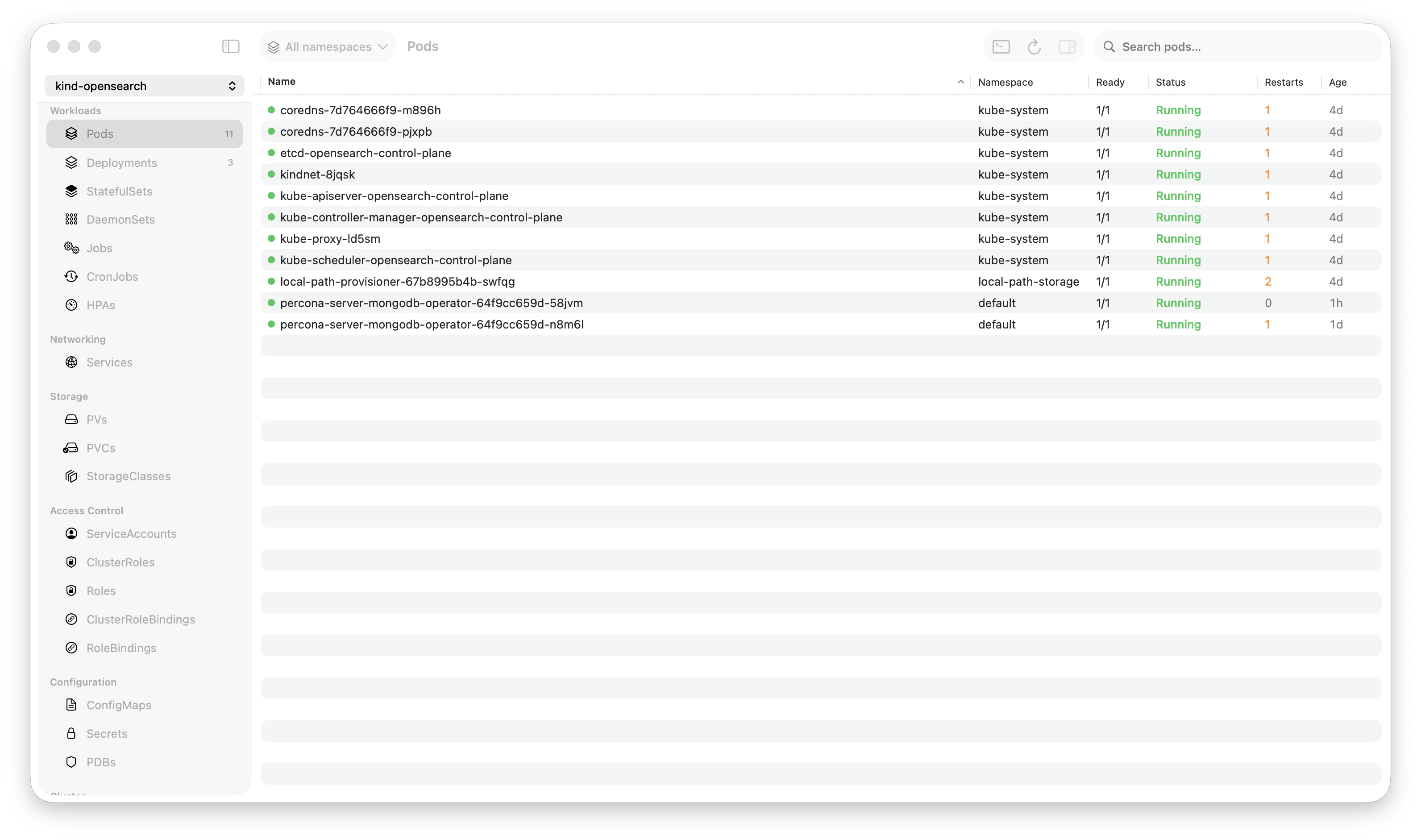
Krust is a native Kubernetes desktop app for production operations on macOS. If you are evaluating tools, compare Features and start with Quick Start.
Last month, a pod in production was stuck in CrashLoopBackOff. I right-clicked it, selected “Diagnose with AI,” and within 10 seconds the assistant had pulled the pod’s events, checked the last 200 lines of logs, found the OOM kill (exit code 137), checked the container’s memory limit (256Mi), checked the node’s available memory, and told me: “Container is being OOM-killed. Memory limit is 256Mi but the process peaks at ~400Mi during startup. Increase the limit to 512Mi or optimize the startup memory footprint.”
No kubectl describe. No kubectl logs. No cross-referencing events with resource limits in my head. One click, one answer, with evidence.
Here’s how I built it and why it’s different from pasting logs into ChatGPT.
The Problem with “Just Ask ChatGPT”
When something breaks in Kubernetes, you can copy-paste logs or YAML into ChatGPT and ask what’s wrong. It works — sometimes. But the process is:
kubectl describe pod→ copy outputkubectl logs→ copy outputkubectl get events→ copy output- Paste all three into ChatGPT with your question
- Wait for a response that may or may not understand your cluster’s context
- Repeat if the AI needs more information
You’re the middleware. You’re fetching data, formatting it, deciding what’s relevant, and relaying it to the AI. That’s exactly the work the AI should be doing.
Krust’s AI agent has direct access to the Kubernetes API. It can inspect pods, read logs, grep for patterns, check events, pull YAML, and look at metrics — all on its own. You ask the question. The agent gathers the evidence.
Five Providers, Your API Key
Krust supports five LLM providers:
| Provider | Default Model | Runs Where |
|---|---|---|
| Anthropic | Claude Sonnet | Anthropic API |
| OpenAI | GPT-4o | OpenAI API |
| Google Gemini | Gemini 2.5 Flash | Google API |
| Google Vertex AI | Claude Haiku | Google Cloud |
| Ollama | Llama 3.1 | Your machine |
Bring your own API key. Paste it in Settings → AI. Done.
Zero data leaves your machine to Krust. API calls go directly from your Mac to the provider. There’s no Krust backend, no telemetry server, no “we process your cluster data to improve our service.” Your kubeconfig, your API key, your direct connection.
And if you don’t want data leaving your machine at all — use Ollama. The entire conversation stays local.
What the Agent Can Do
The agent has 13 tools for reading cluster state and 4 tools for making changes.
Read Tools (Execute Automatically)
| Tool | What It Does |
|---|---|
inspect_pod | Pod status, conditions, containers, resources, restarts, events |
get_pod_logs | Recent logs with configurable tail lines and time range |
grep_logs | Search logs by regex or substring |
list_resources | List pods, deployments, services, etc. by namespace |
get_yaml | Full YAML of any resource |
describe_resource | kubectl describe equivalent |
get_events | Namespace events sorted by time |
get_metrics | CPU and memory metrics |
grep_resource | Search YAML by field/value |
These execute without asking. When the agent decides it needs pod logs to diagnose your issue, it fetches them immediately. No approval dialog. No waiting. The agent is reading, not changing.
Write Tools (Require Your Approval)
| Tool | What It Does | Safety Level |
|---|---|---|
scale_workload | Scale replicas | Approval required |
apply_yaml | Apply resource changes | Approval required |
restart_workload | Restart deployment/statefulset | Destructive |
delete_pod | Delete a pod | Destructive |
When the agent wants to make a change, it stops and shows an approval card:
- What it wants to do (“Scale deployment/api-server to 5 replicas”)
- Why (“Current replica count is 3, but pending pod queue suggests insufficient capacity”)
- Safety level (orange for approval-required, red for destructive)
You click Allow or Deny. For apply_yaml, the YAML editor opens so you can review and modify the proposed changes before confirming. The agent never makes changes without you seeing exactly what will happen.
The Diagnostic Workflow
When you ask the agent to diagnose something, it follows a structured chain:
1. Understand — Parse your question. Identify which resources are involved. If you right-clicked a specific pod, it’s already in context.
2. Gather — Call read tools. Inspect the pod. Pull logs. Check events. Get metrics. The agent decides what data it needs, not you.
3. Analyze — Cross-reference everything. Exit code 137? That’s OOM or SIGKILL. CrashLoopBackOff with healthy probes? Check the liveness probe timing. ImagePullBackOff? Check the image name and pull secrets.
4. Explain — Tell you what’s wrong, citing specific evidence. “Container exited with code 137 (OOM). Memory limit is 256Mi. The last 50 log lines show memory climbing to 390Mi before termination.”
5. Fix — Suggest a fix. If it’s a simple change (scale up, increase limits, restart), offer to execute it with your approval.
This mirrors how an experienced SRE thinks. The difference is the agent does steps 2-3 in seconds instead of minutes.
Context-Aware, Not Context-Blind
The key differentiator from generic AI chat: Krust’s agent knows what you’re looking at.
Right-Click → “Diagnose with AI”
Right-click any pod, deployment, or resource → “Diagnose with AI.” The agent receives the resource’s name, namespace, kind, and current status. It starts gathering data immediately — no need to type “check pod nginx-7f8d4-abc in namespace production."
"Add to AI Chat”
Viewing a deployment that depends on a service that depends on a configmap? Add all three to the AI context. The agent sees all selected resources and can reason across them: “The deployment expects env var DATABASE_URL from configmap/db-config, but that configmap doesn’t exist in this namespace.”
Log Selection → “Explain with AI”
Select specific log lines in the log viewer, right-click → “Explain with AI.” The agent receives exactly those lines. No copy-pasting, no “here are the last 500 lines, find the problem.” You point at the suspicious lines, the agent explains them.
Persistent Memory
The agent remembers past diagnostics.
When it diagnoses an issue, it can store the finding: “nginx pods in production OOM with 256Mi limit — resolved by increasing to 512Mi.” Next time a similar issue occurs — same cluster, same symptoms — the agent recalls the previous resolution before investigating from scratch.
Under the hood, this is a SQLite database with FTS5 full-text search and temporal decay scoring. Recent memories rank higher than old ones. Memories are scoped per cluster, so production findings don’t mix with staging.
This turns the agent from a stateless Q&A tool into something that builds institutional knowledge about your specific clusters. The SRE who fixed this at 2 AM last month? Their fix is in the memory, ready for whoever is on-call next.
What It Looks Like in Practice
Scenario: Pod won’t start
You: Why is checkout-service not starting?

Agent: [calls inspect_pod] [calls get_events] [calls get_pod_logs]

The pod checkout-service-7d4f8-k2m9x is in ImagePullBackOff.

Events show: "Failed to pull image 'registry.internal/checkout:v2.3.1':
unauthorized: authentication required"

The image tag v2.3.1 exists (I can see v2.3.0 was running previously),
so this is likely an expired pull secret, not a missing image.

Check if the imagePullSecret 'registry-creds' in namespace 'production'
has been rotated recently.
Scenario: Deployment running but unhealthy
You: api-gateway has high error rate

Agent: [calls get_pod_logs] [calls grep_logs "error|timeout|5[0-9]{2}"]
       [calls get_metrics] [calls inspect_pod]

Found the issue. 73% of recent log lines contain
"upstream connect error or disconnect/reset before headers.
retries exhausted" pointing at payments-svc.

payments-svc pods are running but their readiness probe
is failing — 0/3 pods are Ready. CPU usage is at 98% of limit.

The payments service is overloaded. Options:
1. Scale payments-svc (currently 3 replicas) — shall I scale to 5?
2. Check if there's a recent deployment that increased load

[Scale to 5 replicas] [Deny]
Why Not Just Use kubectl + ChatGPT?
| kubectl + ChatGPT | Krust AI Agent | |
|---|---|---|
| Data gathering | Manual (you copy-paste) | Automatic (agent calls tools) |
| Context | None (fresh every time) | Resource-aware + persistent memory |
| Iteration | Re-paste with more data | Agent fetches what it needs |
| Actions | Copy command, run in terminal | One-click approval in UI |
| Data privacy | Cluster data goes to OpenAI | Direct to your chosen provider |
| Cluster specifics | Generic advice | Remembers your cluster patterns |
The agent isn’t smarter than ChatGPT — it uses the same models. It’s faster because it eliminates the human-as-middleware step. You ask, it gathers, it answers. One conversation, not five terminal tabs.
Try It
brew install vanchonlee/tap/krustOpen Settings → AI → paste your API key (or install Ollama for fully local). Right-click any resource → “Diagnose with AI.”
Krust’s AI agent supports Claude, GPT-4o, Gemini, Vertex AI, and Ollama. All API calls go directly from your machine to the provider. No Krust servers involved. Available on macOS.